How to Take a U.S. Passport Photo at Home With an Android Phone
Edited by Bobby Hess | FreePassportSnap.com
Author: FreePassportSnap
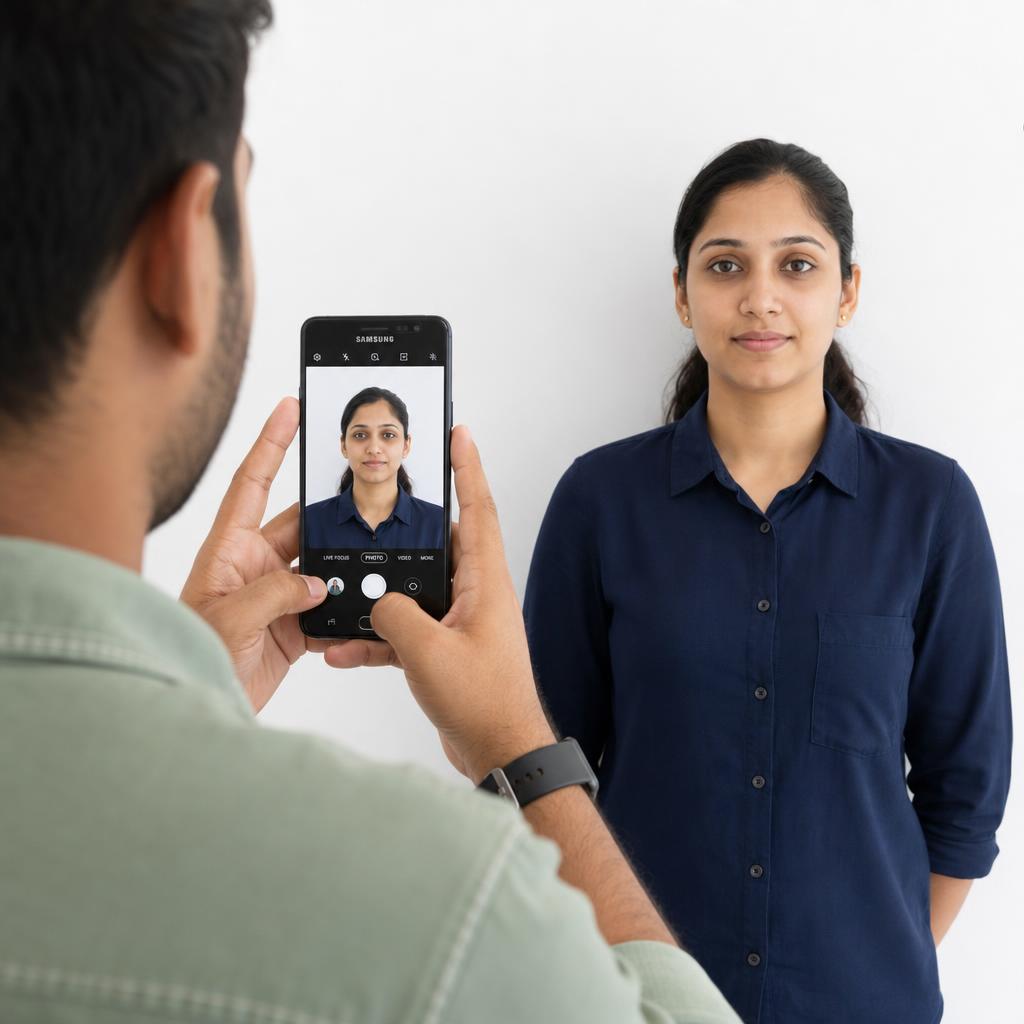
You don't need a photo studio to take a U.S. passport photo. Your Android phone can do it. Whether you have a Samsung Galaxy, Google Pixel, Motorola, OnePlus, or another Android smartphone, the camera you already have can take a high-quality passport photo at home.
The most important part isn't having the newest phone. It's getting the lighting, background, camera position, and framing right. Once you've taken your original photo, you can use FreePassportSnap.com to turn it into a properly formatted passport photo.
Can I Take a Passport Photo With My Android Phone?
Yes. The U.S. Department of State allows passport applicants to have their photo taken at home. A friend or family member can take the picture with your Android phone. Your phone doesn't need to be a professional camera — a recent Samsung Galaxy, Google Pixel, Motorola, or similar Android phone can produce a high-resolution image suitable for a passport photo. The key is taking the original photograph correctly.
What You Need (and What You Don't)
You probably already have everything necessary:
- Android smartphone
- Plain white or off-white wall
- Good lighting (a bright window works well)
- Friend or family member to take the picture
- A few minutes
You don't need a professional camera, expensive lighting equipment, a photo studio, green screen, Photoshop, or an AI photo editor. In fact, you should avoid using filters, beauty modes, or AI editing — they alter your appearance and are specifically prohibited by the U.S. Department of State.
Step 1: Open the Regular Camera App
Open the standard Camera app that came with your Android phone — it may be called Camera, Google Camera, Samsung Camera, Motorola Camera, or OnePlus Camera depending on your device. For a passport photo, you want normal photo mode, not a special effect or portrait mode.
Step 2: Turn Off Beauty Filters
This is especially important on Android phones because many manufacturers include built-in face-smoothing or beauty features. Look for settings labeled Beauty, Face retouching, Face smoothing, Skin smoothing, Blemish removal, Face effects, Filters, or AI enhancement — and turn them all off.
The U.S. Department of State says passport photos must not be digitally altered, and specifically warns against filters and AI-generated or AI-edited photos. Keep it simple: Normal Camera → Photo Mode → No Filters → No Beauty Mode.
Step 3: Use the Main Rear Camera
Have the photographer use the phone's main rear camera (not the selfie camera). This gives you a higher-quality image and lets the photographer stand several feet away from you — which matters. A camera held too close to your face creates distortion. The ideal setup: phone several feet away, you against a plain background.
Step 4: Set a Reasonable Camera Quality
Check your camera settings and use a reasonably high resolution. You don't need the absolute maximum megapixel setting. A Samsung Galaxy's 12 MP or 50 MP mode is more than enough; a Google Pixel automatically shoots at high quality. Avoid the lowest quality modes.
What Size Is a U.S. Passport Photo?
For a printed U.S. passport application, the finished photo must be exactly 2 × 2 inches (51 × 51 mm). Your head should measure between 1 and 1⅜ inches from chin to top of head.
If you're renewing online, the digital photo must be between 54 KB and 10 MB, accepted as JPG, JPEG, PNG, HEIC, or HEIF. Always verify the current requirements for the specific application you're submitting.
Android Passport Photo Checklist
- ✅ Taken within the last six months
- ✅ Color photograph
- ✅ Sharp and in focus
- ✅ Plain white or off-white background, no background objects
- ✅ No shadows on face or background
- ✅ Face directly toward camera, head straight
- ✅ Eyes open and clearly visible
- ✅ Mouth closed or natural expression
- ✅ Glasses removed
- ✅ No prohibited headwear
- ✅ No filters, beauty effects, or AI editing
- ✅ Original high-quality image
The Simplest Setup
- 1. Find a plain white wall
- 2. Stand several feet away from it
- 3. Face a bright window for even lighting
- 4. Have someone take the picture with your Android's main rear camera
- 5. Hold the phone at eye level
- 6. Turn off all filters and beauty effects
- 7. Remove glasses and hats
- 8. Face the camera directly
- 9. Take several pictures and choose the sharpest one
- 10. Upload it to FreePassportSnap to crop and size it correctly
If something doesn't look right, take another photograph. It's usually easier to retake the picture than try to fix it afterward.
Official U.S. passport photo requirements from the Department of State:
travel.state.gov — Official U.S. Passport Photo RequirementsOnce you have a good original photo, upload it to FreePassportSnap.com to instantly crop and size it to the official 2×2 inch U.S. passport format — completely free, no watermark, no registration.
Create Your Free Passport Photo →Related guides
Related guides
Previous
How to Take a Child's Passport Photo at Home (Ages 2–10)
Next
How to Take a U.S. Passport Photo at Home With an iPhone
You Might Also Like

How to Take a Child's Passport Photo at Home (Ages 2–10)
Toddlers fidget, older kids make faces, and nobody sits still on command. Here's how to get a U.S. passport-accepted photo of your child at home — without a studio or a meltdown.
How to Take a U.S. Passport Photo at Home With an iPhone
Your iPhone is already capable of taking an accepted U.S. passport photo. Here's exactly what to do — and what to avoid — to get a photo that won't be rejected.
How to Take Your Own Passport Photo at Home (And Get It Accepted)
You don't need a studio or a photo kiosk. A smartphone, good lighting, and a plain white wall are all it takes — here's exactly how to do it right the first time.